Restarting the lab session is the only reliable fix when the AWS Console URL for C1_W3 comes up empty
Running the command cat ../.aws/aws_console_url and getting a blank return is a frustrating wall to hit, especially when you are just trying to get into the AWS Console for the C1_W3 Introduction to Data Engineering module. When that file is empty, the terminal basically tells you nothing, leaving you stuck without the necessary link to access your environment.
Why the AWS Console URL disappears
The issue typically manifests as a silent failure. You execute the command to print the URL, but the cat command returns nothing because the file itself is empty. This isn't a syntax error with your command or a problem with your lab ID—like the user who reported this with ID edrzfwhcmqum—but rather a failure in the environment provisioning process. The system fails to write the temporary access link into the hidden .aws directory during the initial boot of the lab instance.
How to recover the access link
If you find yourself staring at a blank line after trying to fetch your URL, the most effective solution is a full lab restart. While it seems like a generic suggestion, the timing of the restart matters. Many users find that attempting to restart once doesn't work, but a subsequent attempt—or waiting a few minutes before triggering the restart—actually forces the provisioning script to run again and successfully populate the aws_console_url file.
- Exit your current terminal session.
- Navigate to the lab management dashboard.
- Stop the current lab instance completely.
- Start the lab again from scratch.
- Once the environment is marked as "Ready," re-run the command:
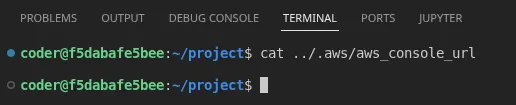
cat ../.aws/aws_console_urlWhat to do when the restart fails
If a standard restart doesn't populate the file, you are likely dealing with a backend synchronization delay. The gap between the lab being marked as "Ready" and the URL actually being written to the disk can sometimes be several minutes. If the file is still empty, wait two to three minutes and try the cat command again before giving up.
If the problem persists across multiple restarts, the failure is likely at the account provisioning level. At this stage, the only path forward is to file a technical report with the lab support team. Be sure to include your specific lab ID (e.g., edrzfwhcmqum) in the ticket. This allows the administrators to check if the specific instance associated with that ID has a corrupted configuration or if the AWS Console link failed to generate on the server side.
Optimizing your lab workflow
To avoid losing momentum when these environment glitches happen, it is a good habit to verify the existence of your configuration files as soon as the lab boots. Instead of jumping straight into the assignment, a quick check of the .aws folder can tell you immediately if the environment is healthy. If the URL file is empty from the start, you can trigger the restart immediately rather than discovering the issue halfway through a task.
This specific bug in the C1_W3 module highlights a common friction point in cloud-based learning environments: the disconnect between the "Ready" status of a virtual machine and the actual availability of the credentials needed to use the cloud provider's console. When the local file is empty, the link to the external console is broken, and no amount of command-line troubleshooting can fix a file that simply wasn't written by the orchestrator.
That empty file got me too, but I found checking if the lab instance was still running before restarting saved me a few minutes of redoing setup.