Android 14's USB Debugging Is Stalling Your Second Install
The pattern you're hitting — first install succeeds, second install hangs indefinitely — traces back to a security model change that Android 14 introduced around package installation and ADB authorization. It's not a bug in your app or in the build configuration. It's the OS enforcing a rule that didn't exist in earlier versions.
Here's what actually happens. When you first install an app over ADB with USB debugging enabled, Android 14 presents an authorization dialog on the device. If you tap "Always allow from this computer," the system adds your computer's RSA key to a persistent allowlist. That key lets subsequent ADB commands run without re-prompting. The first install goes through because the package installer accepts the incoming APK while the authorization is fresh.
The second install stalls because of how Android 14 handles the package installer's verification step. The system performs a more thorough integrity check on any APK being installed, even when the package already exists on the device. This check involves verifying the APK signature against the currently installed version. If the signature doesn't match — which happens when you rebuild and the signing key changes, or when the build toolchain generates a new certificate — the installer enters a verification state that waits for user confirmation on the device screen.
That confirmation screen is the killer. When you run adb install from a computer, the command sends the APK to the device and then waits for the package manager to complete. If the package manager needs user interaction to approve the signature mismatch, the ADB command blocks indefinitely. The process appears stuck because it is — the daemon is waiting for input that never comes from the terminal.
Uninstalling first doesn't help because the problem isn't a conflict between old and new versions. The problem is that Android 14's package manager requires explicit user approval when the APK signature differs from what's on record, and that approval has to happen on the device screen, not through ADB.
The compatibility flag you asked Gemini to apply doesn't address this. That flag controls target SDK version and manifest settings, not the signing configuration. What matters is whether the rebuilt APK carries the same signing certificate as the original.
Here's what to check. Run adb install -r instead of adb install. The -r flag tells the installer to replace the existing package rather than trying to verify and upgrade it. This bypasses the signature verification step in many cases. If that doesn't work, add -t to allow test packages that might not be signed with a production certificate.
If you're using Android Studio's Run button rather than a manual adb install command, the IDE handles the reinstall differently — it uses adb install-multiple with incremental installation flags that work around the verification issue. The manual command path doesn't get those flags.
Another angle: check whether USB debugging is actually authorized. Run adb devices and look at the list. If your device shows as "unauthorized," the initial authorization never completed, and every install after the first one will fail because the ADB daemon can't execute commands. The "Always allow" prompt might have been dismissed or timed out.
The screenshot showing the stall — if it's the package installer dialog stuck on "Installing..." — that's the verification state. Tap the device screen manually to dismiss it, then check if the install completes. If it says "App not installed" with a signature error, that confirms the signing mismatch theory.
For a permanent fix, keep a consistent signing configuration across rebuilds. If you're using a debug keystore, make sure the build system isn't regenerating it between installs. The debug keystore is typically at ~/.android/debug.keystore on macOS/Linux. If that file gets recreated, every rebuild produces a new signature, and Android 14 will block the install.
Alternatively, switch to adb install -r --fastdeploy if your build tool supports it. Fast deploy uses a different code path that sidesteps the full package verification.
The bottom line: Android 14 tightened the security around ADB installs, and the change manifests as a stall on the second install. The fix is either a different install command, a consistent signing key, or manual confirmation on the device screen.
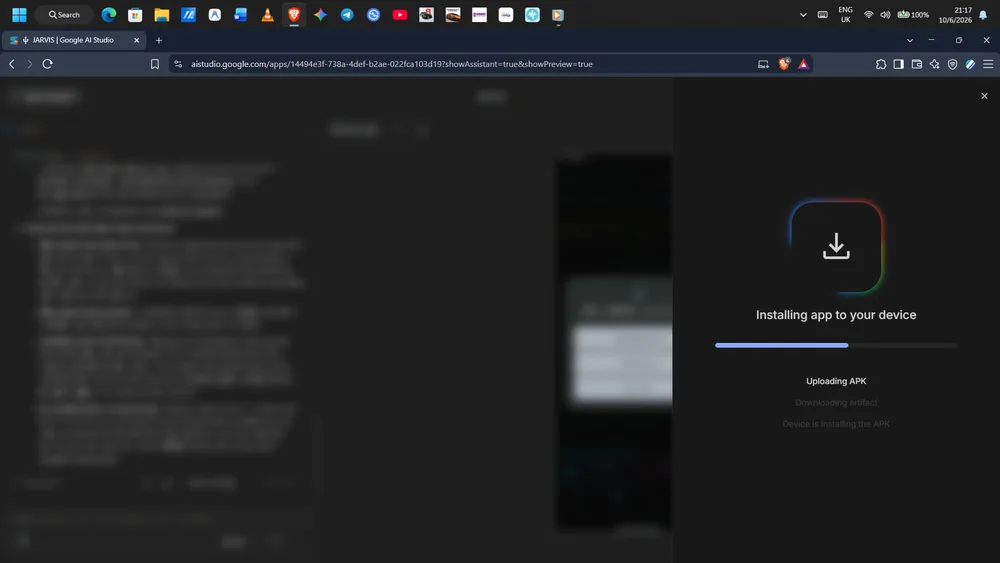
Tapped allow first time, but second install still hung until I restarted adb server.