Adding the Codex usage widget to your iPhone Home Screen
That little Codex usage widget finally landed in the ChatGPT iOS update, and it’s actually useful if you know where to look. OpenAI slipped it in as part of the latest ChatGPT release, so you don’t need a separate app or a weird shortcut—just the standard widget picker. If you’ve already updated ChatGPT from the App Store, the widget should be sitting there waiting for you to drag it onto your home or lock screen. Below is the exact flow I followed, plus a few practical notes on what to do if the widget decides to hide.
First, unlock your phone and navigate to a blank spot on the home screen. Press and hold until the icons start to jiggle—that’s iOS’s way of saying “edit mode engaged.” In the upper‑left corner you’ll see an Edit button; tap it, then choose Add Widget. A search bar appears at the top; type “ChatGPT” and select the result. Now swipe through the widget carousel until you spot something labeled “Codex usage” or “Codex tasks.” Tap the one you like, hit Add Widget, then press Done to lock everything in place. The widget should now show a small counter that updates whenever you run a Codex request through the ChatGPT app.
If you also want the widget on your lock screen (handy for glancing at your remaining Codex taps without unlocking), the process is a tad clunkier but still doable. Tap and hold the lock screen itself, then choose Customize → Lock Screen. You’ll see a widget area below the clock; tap it, search for ChatGPT again, and pick the Codex usage option. Add it, close the picker, and tap Done. On my device the lock‑screen widget took a second to appear after I closed the picker, so a quick pull‑down to refresh the view helped.
Now, what to do once the widget is there? The most obvious next step is to actually use Codex and watch the number tick down. Each time you send a prompt that triggers the Codex model—whether you’re asking for code snippets, debugging help, or a quick script—the widget should decrement accordingly. If you notice the count isn’t changing, double‑check that you’re using the latest ChatGPT build (open the App Store, tap your profile, and see if an update is pending). Also make sure Codex isn’t toggled off in the app’s Settings → Features menu; a disabled Codex will keep the widget stuck at zero.
A few quirks popped up during my rollout. First, the widget sometimes refuses to show up after a phone restart until you open the ChatGPT app at least once—seems like the extension needs a wake‑up call. Second, if you have multiple ChatGPT accounts logged in, the widget appears to pull usage data from the account that was most recently active in the foreground. Switching accounts may require you to remove and re‑add the widget to refresh the data source. Neither of these is a deal‑breaker, but they’re worth noting if you’re managing a shared device or a work profile.
Overall, the widget delivers exactly what the title promises: a lightweight, at‑a‑glance view of your Codex usage limits without digging into the app’s settings. It’s not a flashy feature, but for anyone who leans on Codex for daily coding chores, it saves a couple of taps and a bit of guesswork. Give it a try, keep an eye on the counter, and you’ll know exactly when you’re about to hit the daily ceiling—no more surprise “you’ve exceeded your limit” pop‑ups mid‑flow.
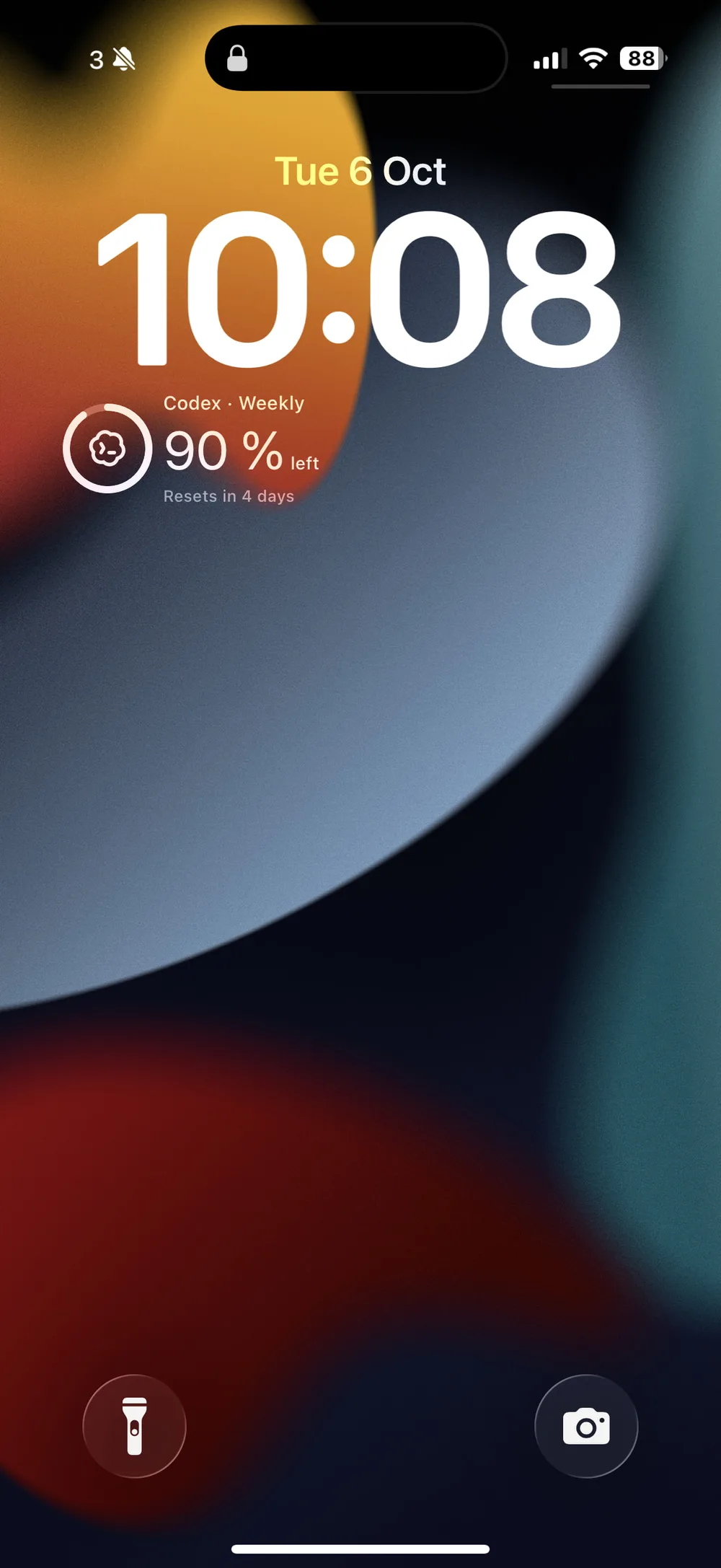
The Codex usage widget adds a surprisingly useful glance at token consumption right on the Home Screen.