My ChatGPT chats are missing from the Codex desktop app.
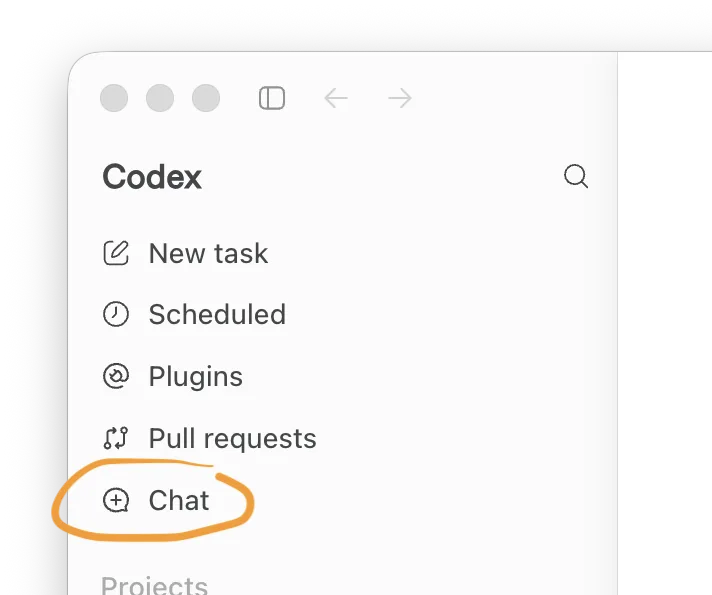
When the user reinstalled the desktop client, they moved both ChatGPT and Codex to the trash and ran the fresh installer. The download is named Codex.dmg, and after launch the About window reports Chat GPT Version 26.707.51957. The sidebar now lists only “Work and Codex” options, and the floating window shows a new Chat entry that wasn’t present before. Clicking this entry opens a right‑hand panel with “Recent chats” and a “See all” button, revealing the full list of ChatGPT conversations. The web interface still displays every chat, but the desktop app provides no access to them—only Codex projects appear.
The situation suggests a split between the ChatGPT account and the Codex account, even though they share the same email. The new “Chat” item works as a bridge: it pulls the chat history from the web‑based service into a desktop window, but it does not restore the older projects that were stored under the previous ChatGPT label. The classic “ChatGPT Classic” app, which still lives in the Applications folder, restores the full chat list and the older projects, while deliberately excluding Codex work.
Steps to recover chats on the desktop
- Open the Codex desktop app.
- Click the Chat entry in the sidebar (it appears as a separate item from “Work and Codex”).
- In the panel that opens, select See all to view the complete chat archive.
- For projects that were saved under the old ChatGPT label, launch ChatGPT Classic from the Applications folder. It will display those chats and projects side by side.
- If the Classic app does not show the expected history, verify that you are signed into the same OpenAI account used on the web. A mismatch will keep the two services isolated.
Troubleshooting if chats stay hidden
- Check the About box of the current desktop app; the version 26.707.51957 confirms you have the latest build, but it may still lack full chat syncing.
- Confirm that the “Work” tab is not inadvertently linked to a different OpenAI workspace. Switching accounts in the web portal and re‑authenticating the desktop client often resolves the split.
- Should the Classic app still miss entries, delete its cache (if available) and reinstall it; this forces a fresh pull of the web‑based chat history.
Keeping a backup for future resets
- Export chat lists from the web interface periodically (the “Export” option is available under Account settings).
- Store the exported files in a location separate from the application data, so a reinstall never erases the records.
- Use the web or mobile clients for full chat access while reserving the Codex desktop app for code‑project work.
If the split persists after re‑authentication, the most reliable fallback is to continue using the web or mobile clients for chat management and treat the Codex desktop app strictly as a project workspace. This avoids the risk of losing conversation history during future updates or device changes.
https://github.com/openai/codex/issues/33080
That "Chat" tab wasn’t there before—someone at OpenAI actively hid Codex in the latest update.