Fixing C3W4 Grader Error When Submitting Your Images Zip File
Getting blocked by the automated evaluation system right when you are ready to wrap up an assignment is frustrating. When working through the C3W4 module, a common hurdle occurs during the final submission step when the backend script rejects your archive with the message: "There was a problem grading your submission. Check stderr for more details."
Submitting multiple times in quick succession rarely fixes this specific glitch. Waiting a few minutes between attempts only to hit the exact same standard error notification usually points to a structural mismatch inside the archive rather than a transient server outage. If you are preparing an archive for a community platform or an automated course grader, minute structural details matter. When self-hosting environments or automated grading pipelines process student uploads, they expect a strict directory tree. A single misplaced root folder can break the entire evaluation script.
Verifying the Contents of Your Archive
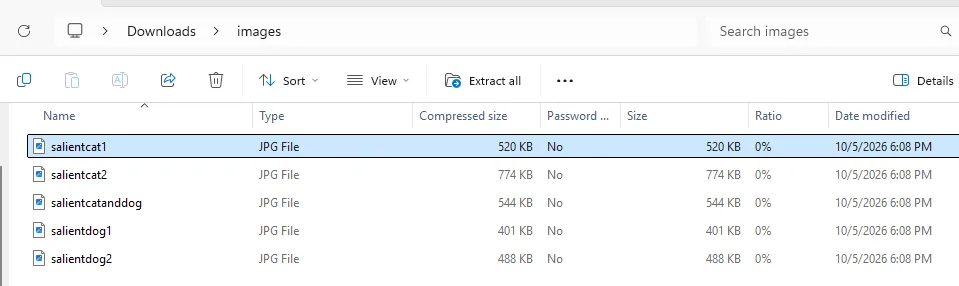
Before trying another upload, open your archive and inspect how the files are laid out. The evaluation script is looking for a file named images.zip. Inside that package, it expects to find exactly five JPG images with precise file names.
The most common mistake happens during the compression process itself. If you select a folder containing your images and right-click to compress it, Windows often zips the folder instead of the raw files inside it. When the grading container extracts images.zip, it looks for the JPG files directly in the root directory. If it finds a subfolder instead, the script throws the stderr exception because it cannot locate the expected paths.
Here is what you need to check inside your compression utility:
- Root Directory: The five JPG files must sit directly at the root of the archive. There should be no intermediate parent folder.
- Naming Convention: Match the exact naming expected by the assignment instructions down to the letter and case.
- File Extensions: Ensure the files end in .jpg and not .JPG or .jpeg, which can cause case-sensitive Linux grading containers to fail.
Steps to Rebuild the Zip File Correctly
If your initial archive included an extra directory layer, you need to recreate it from scratch. Avoid using third-party archiving tools that might inject hidden metadata files like __MACOSX or Thumbs.db into the package, as these extra files can sometimes confuse strict grading parsers.
- Open the folder containing your five required JPG images on your local machine.
- Select all five files directly inside the directory without highlighting the parent folder itself.
- Right-click the selected files and choose the native compression option (such as Send to > Compressed (zipped) folder on Windows).
- Rename the resulting output archive to images.zip immediately.
- Double-click the newly created images.zip to inspect it. You should see the five image files staring back at you immediately without needing to click into a subfolder first.
Once you have verified the flat internal structure, return to the submission portal and upload your freshly packed images.zip file. This small adjustment resolves the stderr evaluation failure in the vast majority of cases by aligning the archive layout with what the backend script expects to read.
The error message often pops up due to a missing 'readme.txt' file inside the zip, not just the images.