Why the Week 3 Logistic Regression lab keeps freezing on Coursera
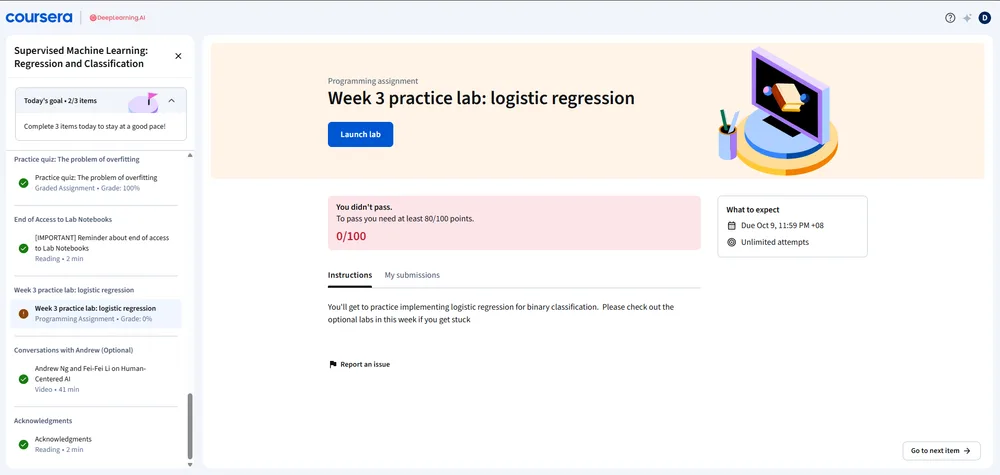
The "Launch Lab" button for the Week 3 logistic regression assignment is currently triggering browser timeouts for some users, where the page hangs and eventually forces a termination of the process. This happens even after the first submission attempt succeeds, meaning the environment is unstable during mid-session work. Standard troubleshooting like clearing caches, switching networks, or updating the browser usually fails because the bottleneck is often at the virtual machine allocation level rather than the local client.
How to handle the unresponsive lab page
When the browser requests to terminate a page because it is unresponsive, the issue is typically a memory leak or a hanging kernel in the backend notebook. If you are stuck in a loop where the page freezes immediately after launching, try these specific steps to bypass the hang:
- Hard Refresh and Session Reset: Instead of just clicking "Launch Lab" again, go back to the course dashboard and ensure all previous lab instances are completely shut down. If the platform allows, look for a "Reset Lab" or "Reboot" option in the lab menu before the page freezes.
- Incognito Mode: Launch the lab in a private window. This eliminates interference from browser extensions that might be trying to parse the notebook's JavaScript, which often contributes to the "unresponsive page" error.
- Resource Monitoring: Keep your system task manager open. If you see the browser's memory usage spike aggressively the moment the lab loads, the issue is likely the notebook attempting to load a large dataset or a corrupted state from a previous session.
What to do when standard fixes fail
If updating the browser and switching networks doesn't work, the failure point is likely the interaction between the Coursera platform and the specific virtual environment hosting the logistic regression assignment. When a page becomes unresponsive mid-way through work, it usually indicates that the notebook kernel has crashed.
To prevent losing progress, you should avoid keeping the lab open in multiple tabs. Each new "Launch Lab" click can sometimes trigger a new session request that conflicts with the existing one, leading to the browser freezing. If you encounter the termination prompt, save any local snippets of your code in a external text editor immediately, as the "unresponsive" state often wipes the current unsaved cell outputs.
Moving the discussion to a stable platform
For those who find the built-in course forums too slow or prone to the same loading issues as the labs, moving technical discussions to an open-source community platform can help. For instance, Discourse is a 100% open-source community platform that allows for real-time chat and the creation of specific discussion topics. While Coursera has its own system, self-hosting a community on Discourse or using their official hosting allows for better plugin integration, such as AI-powered chatbots, which could potentially automate the troubleshooting of these common lab errors.
If you are managing a group of students facing these same logistic regression loading issues, setting up a dedicated space on a platform like Discourse ensures that the conversation isn't lost when a specific course page crashes. You can find more about their hosting options at https://discourse.org/pricing.
The most critical takeaway for anyone hitting the "terminate page" error in Week 3 is to stop attempting to "update the lab" from within the frozen session. Instead, kill the process entirely, clear the session from the dashboard, and relaunch. If the freeze happens during the actual execution of a logistic regression cell, check if you are accidentally running an infinite loop or loading a dataset that exceeds the allocated RAM of the virtual machine.
My lab ID was useless because the page crashed before I could see it. Just retrying the Launch Lab button fixed the timeout instantly.