ChatGPT Web Personalization Shows Two Different States
If you rely on Custom Instructions to steer GPT responses, you might have noticed that ChatGPT Web does not always show the truth. The interface displays conflicting states depending on which menu path you take to reach the same settings page. One route claims your instructions are turned off and empty, while another route shows them fully populated and active. This inconsistency creates unnecessary doubt about whether your preferences are actually being applied.
The issue appears specifically in the ChatGPT web interface using Chrome on macOS, though it likely affects other browsers too. The problem stems from how the frontend fetches or renders the personalization data based on the entry point. Whether you navigate through the quick profile menu or the full settings gear, you expect the same result. Currently, you get two different answers for the same account state.
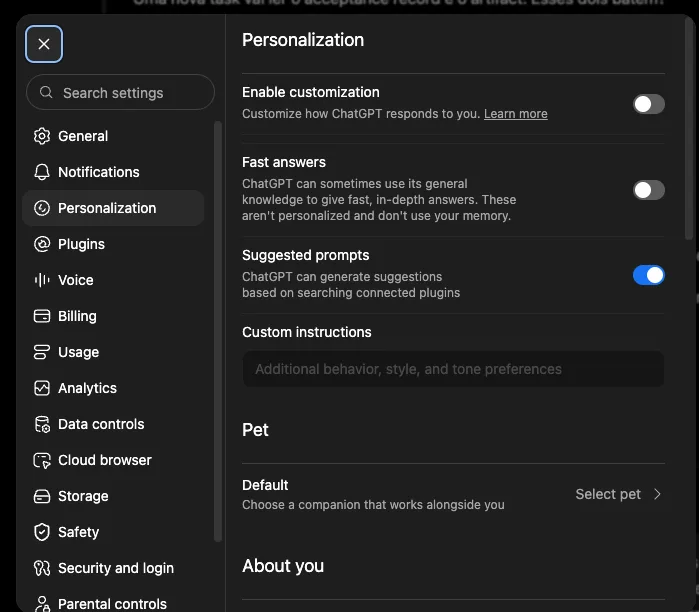
How the contradiction happens
To see this yourself, log into your ChatGPT Plus account on the web. First, click the user profile icon in the top right corner. From the dropdown, select Personalization. In this direct view, the toggle for enabling customization often reads as OFF, and the Custom Instructions text box appears completely empty and disabled. It looks as if you have never set up any instructions.
Now close that panel. Go back to the profile icon, but this time select Settings. Inside the Settings menu, choose Personalization again. In this second view, your saved Custom Instructions are clearly visible. The toggle is on, and the text matches what you originally entered. Both paths lead to the same underlying data, but the rendering differs.
To confirm the instructions are not actually lost, open the ChatGPT macOS application. Navigate to Settings and then Personalization. Here, you will see the exact same Custom Instructions that were visible in the second web path. The instructions are also actively applying during conversations, meaning the backend state is correct. Only the first web view is misreporting the status.
Why this matters for workflow
This bug is more than a visual glitch. Custom Instructions form the baseline context for every new chat. When users see the empty state, they often assume their settings have reset. This leads to redundant efforts, such as retyping instructions or toggling the feature on and off unnecessarily. Some users might even doubt whether their prompts are influencing the model, leading to lower trust in the tool’s consistency.
The discrepancy suggests a caching issue or a separate API call for the two navigation paths. The profile shortcut might be loading a default or cached state rather than fetching the latest user preferences. The settings route, being part of the full configuration page, likely triggers a fresh fetch from the server. Understanding which path is authoritative helps you verify your setup quickly. Always check the Settings path if the profile view looks empty.
What to check next
If you suspect your instructions are gone, do not rewrite them immediately. Use the secondary path described above to verify their presence. Open Settings > Personalization on the web. If your text is there, the system is working correctly. You can also test a new conversation to see if the model follows your constraints. This quick verification saves time and prevents accidental changes to a working configuration.
For developers tracking UI consistency, this highlights the need for unified state management across navigation routes. The same resource should render identically regardless of the entry point. Until OpenAI aligns these views, users should treat the Settings page as the source of truth for their personalization status.
The inconsistency is especially confusing when you switch between the "Custom Instructions" and "Data Controls" menus.