Live API challenges with Gemini 1.5 Flash vs. Pro require careful model selection.
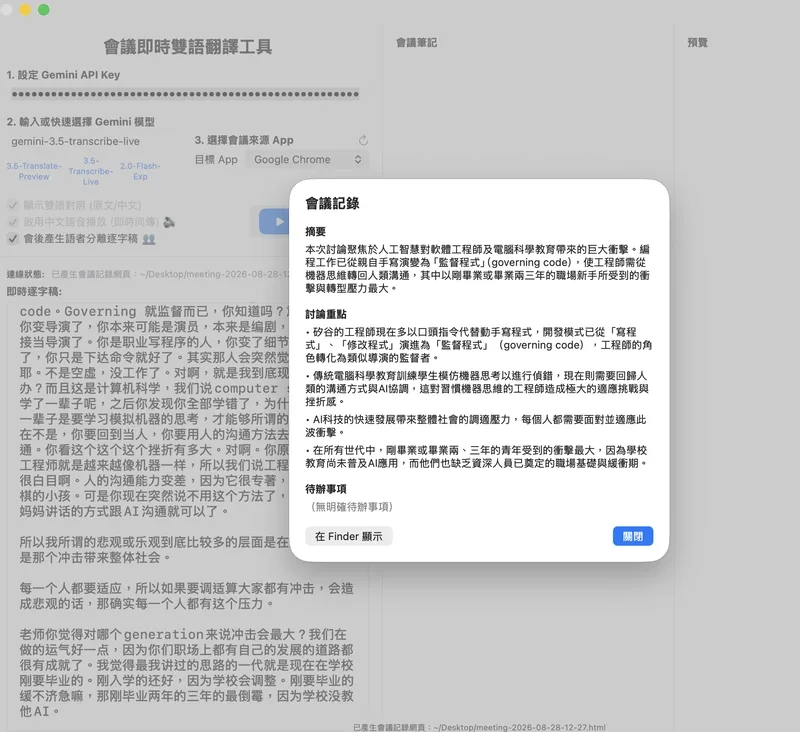
Real-time transcription and speaker identification are incompatible in current implementations. While live transcription provides streaming text, it lacks speaker diarization—only batch processing via the Interactions API offers this feature.
Key differences between live and batch models:
- gemini-1.5-flash-transcribe-live:
Uses WebSocket for streaming and supports real-time subtitles.
No speaker diarization, no word-level timestamps.
Max session duration: 10 minutes.
interimInputTranscription enables live follow-along transcription.
- gemini-1.5-pro-transcribe:
Uses HTTP requests for post-meeting processing.
Supports speaker diarization (up to 8 speakers).
Provides detailed word-level timing.
Max duration: 1 hour (30 minutes with diarization).
Better suited for formal documentation.
For live translation, the gemini-1.5-flash-transcribe-live model is required. Configuration for real-time streams follows this structure:
{
  "setup": {
    "model": "models/gemini-1.5-flash-transcribe-live",
    "generationConfig": { "responseModalities": ["TEXT"] },
    "inputAudioTranscription": {
      "languageCodes": [],
      "mode": "SMART"
    },
    "realtimeInputConfig": {
      "automaticActivityDetection": { "disabled": false }
    }
  }
}
Language detection works automatically with an empty languageCodes array, but specifying ["en-US"] reduces latency. "SMART" mode filters filler words like "uh" or "um," improving readability. The customVocabulary feature supports up to 1,000 entries for specialized terminology.
All Replies (3)
Want a live back-and-forth? Join the global AI chat room — login to talk.
我也遇到过类似的问题,尤其是在使用 Gemini Live API 时。经过一番调研,我发现 live 和 batch 处理确实存在一些差异。例如,live 译文虽然实时更新,但却缺乏说话者识别功能,这意味着它不能确定谁正在讲话。在这种情况下,我发现使用 WebSocket 的 live API(例如 gemini-3.5-transcribe-live) 可能是一个不错的选择,因为它可以提供实时字幕或讲话时的即时字幕。
Adding a noise gate to your setup might help reduce hallucinations, just as it did for others—though the root issue likely stems from the mismatch between live and batch processing limitations. For instance, if your app relies on real-time transcription without speaker diarization, switching to the batch processing model (via the Interactions API) could provide more reliable context, even if it requires post-meeting adjustments.
Latency is killing me. Did that audio buffer actually fix the lag for you? I found that real-time transcription and speaker identification can't be done together currently.